WordPress migration without losing your rankings, email or enquiries
Clients tell us a version of the same story. The firm is established, often a leader in its field. Its share of enquiries is falling, and the website has sat untouched for years. Now the WordPress site has to move, and the fear is losing what it earned: its place in Google, its links, its enquiries and the company email.
Each risk is manageable if the work happens in the right order. Here is that order, as an owner's checklist, with every rule checked against its source on 22 November 2026.
Our recommendation for the new site is Next.js. Still deciding? Read why we recommend Next.js, and when to keep WordPress. If whoever looks after your site is leaving, start with the handover checklist.
1. Take an inventory before you touch anything
Every page has an address, its URL, such as yourcompany.com.sg/services/pump-repair/. The last part, pump-repair, is the slug. Rankings, links and bookmarks point at these exact addresses. List them all.
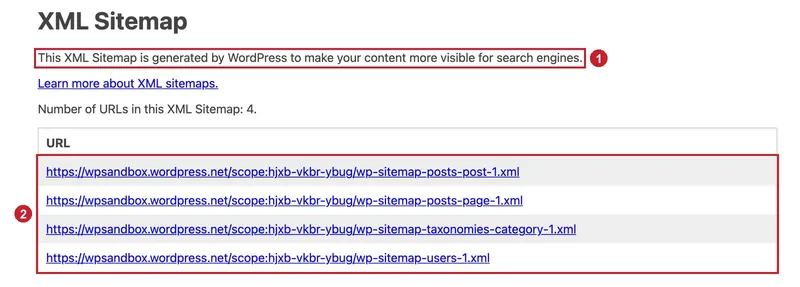
- Every URL. Start with the sitemap, the file listing your pages for search engines. WordPress has published one at
/wp-sitemap.xmlsince version 5.5, unless a plugin replaced it. Then run a crawler, a tool that follows every link, such as Screaming Frog, which Google's site-move guide mentions. Include images and PDFs.
- The pages that earn their keep. Google Search Console, Google's free service for monitoring your site in its results, shows where clicks land (Performance report) and which pages other sites link to (Links report). Google Analytics' Landing page report shows where visits start and, if enquiries are tracked as "key events", which pages lead to them.
- What the site does. List every form and its inbox, and the plugins doing real jobs: bookings, payments, a second language. If your email comes with the old hosting, the mailboxes must move first.
When we run our site check before a migration, we usually find core software years out of date, a dozen or more plugins, broken links, pages that no longer exist, details that disagree between pages, and slow pages. A migration, like any website revamp, is the moment to fix these, not to copy them across.
2. Export everything, and know what will not come across
Take three copies first, and keep them in an account the company controls.
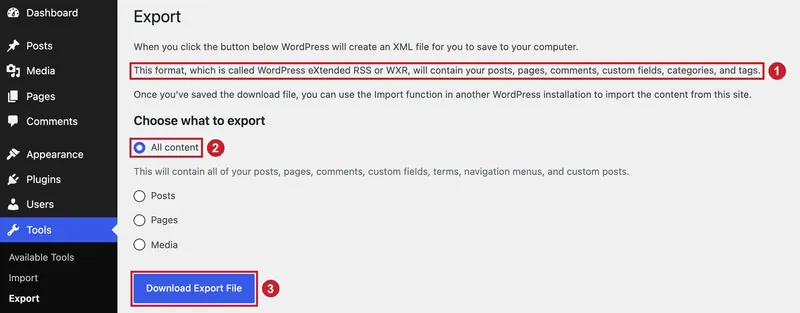
- The export file.
Tools → Exportcreates a WXR file which, says WordPress's documentation, contains "your posts, pages, custom post types, comments, custom fields, categories, tags, custom taxonomies, and users".
- The media. Images and PDFs sit in a folder WordPress calls
uploads. Copy it whole. - A full backup. WordPress's backup guide says a full restore needs both parts: "Database and Files".
Three things need special care. Page-builder layouts live in the builder plugin's own format, so expect to rebuild the design. Shortcodes, the bits in square brackets that insert a gallery or a form, are "a WordPress-specific code" in WordPress's own words, so each needs replacing. Form entries may sit inside the form plugin, not the export file: export them with its own tool.
3. Keep your URLs, and redirect every one that changes
The safest URL is one that never changes. WordPress's own page on permalinks says your addresses "are permanent and should never be changed". On Next.js, which is what we recommend and build on, the new site can serve exactly the same addresses, and every redirect sits in one configuration file (Next.js documentation).
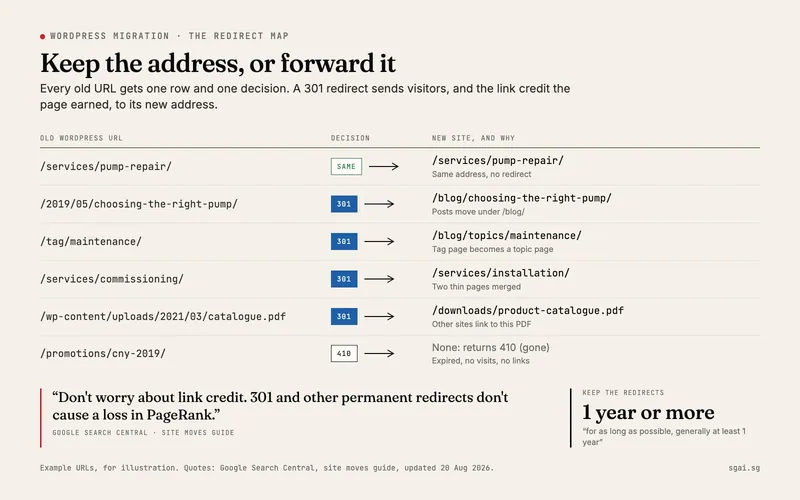
Where an address must change, the old one needs a 301 redirect, a permanent forwarding instruction from the server. Google recommends "a permanent server-side redirect whenever possible", and says "the 301 and 308 status codes mean that a page has permanently moved". Next.js uses 308 for its permanent redirects. Its site-move guide adds: "Don't worry about link credit. 301 and other permanent redirects don't cause a loss in PageRank."
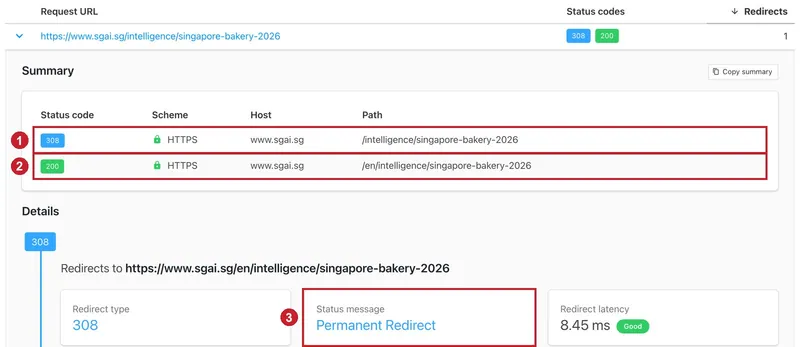
Write it down as a redirect map, one row per old URL:
| Old URL | New URL | Reason |
|---|---|---|
/services/pump-repair/ | /services/pump-repair/ | Same address, no redirect |
/2019/05/choosing-the-right-pump/ | /blog/choosing-the-right-pump/ | Posts move under /blog/ |
/tag/maintenance/ | /blog/topics/maintenance/ | Tag page becomes a topic page |
/services/commissioning/ | /services/installation/ | Two thin pages merged |
/wp-content/uploads/2021/03/catalogue.pdf | /downloads/product-catalogue.pdf | Other sites link to this PDF |
/promotions/cny-2019/ | None: returns 410 (gone) | Expired, no visits, no links |
Google's guide adds three rules:
- Redirect straight to the final page, avoiding chains of redirects.
- Never send everything to the home page. Google warns this "might be treated as a soft 404 error", counting the old page as missing. Where nothing close exists, answer with a 404 ("not found") or 410 ("gone").
- Keep redirects for a long time: "Keep the redirects for as long as possible, generally at least 1 year."
Search Console's Change of Address tool is only for moving "from one domain or subdomain to another", so a same-domain move skips it.
4. Carry over what search engines and AI assistants read
Pages carry labels that machines read, which a new platform will not copy unless someone checks. Compare old and new for every page that earns visits:
- Titles, meta descriptions and headings. Google asks for a title on every page, and may show the meta description, a short summary, under your result.
- Image alt text, the short description of each image, which Google uses to understand it.
- Structured data: labels in the page's code, unseen by visitors, stating facts such as your name, address and opening hours (Google's introduction).
- The sitemap, now listing the new URLs.
- Canonical tags. A canonical tag names a page's main address when the same content sits at more than one. Google's guide says each new URL should carry one pointing to itself.
- Internal links between your own pages, updated to the new URLs.
AI assistants read the same pages. Google says SEO best practices "remain relevant for AI features in Google Search" (AI features and your website), including structured data that "matches the visible text on the page". Bing Webmaster Tools' AI Performance report, in public preview since February 2026, shows which of your URLs Microsoft Copilot cites. Save that list before the move. Move any llms.txt file too.
5. Do not break your email
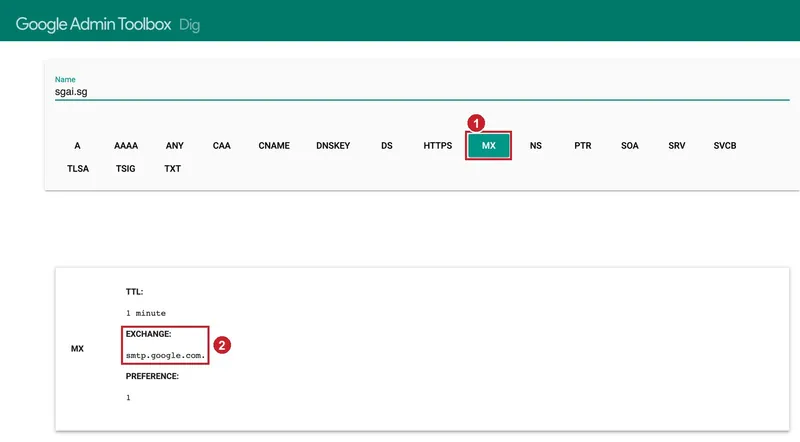
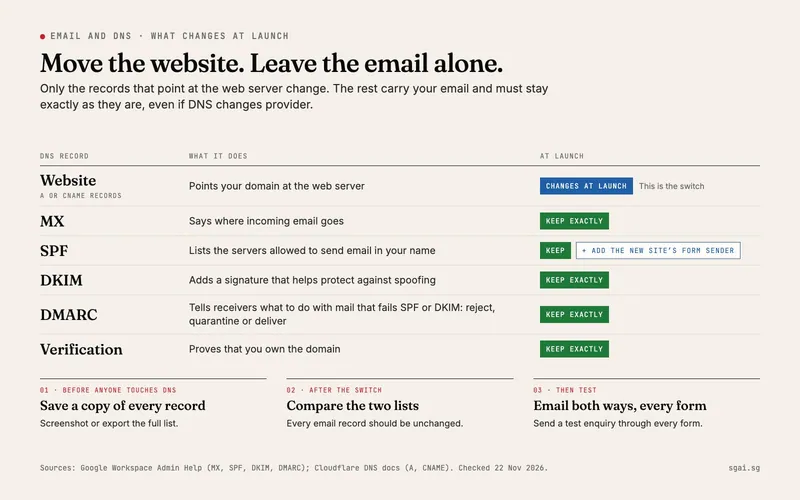
Your website and email share one address book: DNS, which tells the internet where your domain's website and email live. Moving the website should change only the records pointing at the web server, usually A or CNAME records. Everything else must stay exactly as it is, even if DNS changes provider:
- MX records say where incoming email goes: a sender's computer "looks up the MX records for your email domain" to work out where to deliver it. Lose them and email stops.
- SPF lists the servers allowed to send email in your name. Google's SPF guide says that list should cover "Services that send automatic email, for example 'Contact us' forms", so add the new site's form sender.
- DKIM adds a signature that helps protect your domain against spoofing, fake mail sent in your name.
- DMARC tells receiving servers what to do with mail that fails SPF or DKIM: "reject, quarantine, or deliver", where quarantine means the spam folder (DMARC guide).
- Verification records prove that you own the domain.
Unauthenticated messages "might be marked as spam or rejected", Google's sender guidelines warn. That is how a form fails silently: the page says thank you, and the enquiry lands in spam or nowhere.
Before anyone touches DNS, save a copy of every record. Afterwards, compare, test email both ways, and send a test enquiry through every form.
6. Build on a staging site, test, then switch in a quiet hour
A staging site is a private test copy of the new site. Google's guide to changing your hosting suggests "IP-restricted access" and a noindex rule, which asks search engines not to list the page.
Test every page, form, download and row of the redirect map.
At least a week before launch, lower the DNS records' TTL (time to live: how long providers keep your old settings) to "a few hours", as Google suggests. Then switch in a quiet hour: "Time your move to coincide with lower traffic, if possible."
At launch, remove the noindex rule and any block in robots.txt, the file that tells crawlers where they may go. Forgetting them "can prevent your new site from being indexed completely". Check Search Console verification too: a file or tag on the old site leaves with it, while a DNS record does not.
Keep the old site as a backup until, in Google's words, "the traffic to the old provider reaches zero".
7. Watch the first 30 days
Google expects "a few weeks for most pages to move" on a small to medium-sized site, and longer on larger ones.
| When | What to do | Where |
|---|---|---|
| Launch day | Test every redirect and form. Check staging blocks are gone | A crawler, your inbox |
| Days 1–2 | Submit the new sitemap. Send changed URLs through IndexNow | Search Console, Bing Webmaster Tools |
| Week 1, daily | Check each "Not found (404)" and "Redirect error" page. Fix the redirects | Page indexing report |
| Week 1 | Update links you control: Google Business Profile, social pages, ads | Each account |
| Weeks 2–4 | Compare top pages' clicks with before. Check enquiries arrive | Performance report, inbox |
| Day 30 | List what is left. Keep the redirects and backup | Owner and developer |
Redirects to missing pages, a mistake Google says it sees "frequently", show up in the Page indexing report as "Not found" errors. For Bing, submit sitemaps in Bing Webmaster Tools and use IndexNow, which lets a site "instantly inform search engines" of changes. Its FAQ says to submit redirected URLs too.
How long it takes
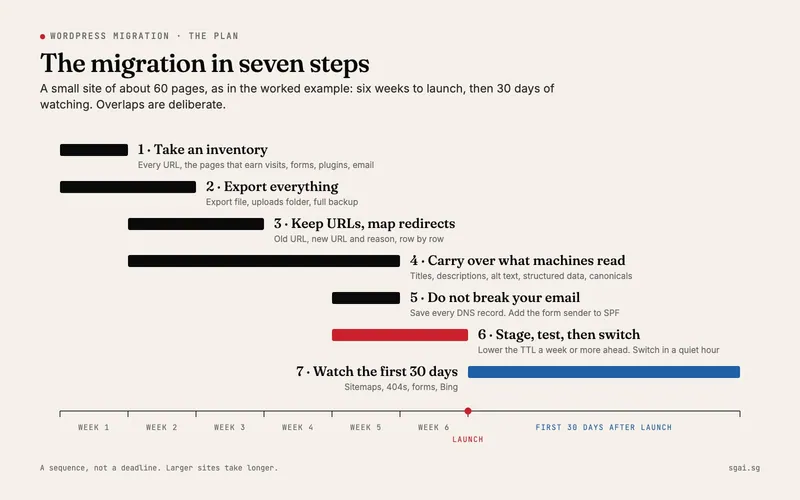
As a rough guide, a small site of up to about 100 URLs, with a blog and a contact form, can move in a few weeks from inventory to launch, as in the example below. A large one, with thousands of URLs, bookings, payments or several languages, takes longer, and Google says it can move "one section at a time". Either way, Google then needs the few weeks above, or longer, to settle.
Warning signs of a bad migration
- Rankings fall and stay down past the first few weeks. Check the fallen pages' redirects first.
- Forms fail silently: a thank-you page, but no enquiry.
- Emails bounce, or your replies land in spam.
- The site vanishes from Google. Look for a leftover staging block.
A worked example
This is an illustration, not a client. A family-run pump supplier thinks of its WordPress site as 60 pages: 22 pages and 38 blog posts. The crawl finds 151 addresses, the extras being PDFs and the tag, category, author and date pages WordPress made by itself. Eleven URLs bring nearly all of Google's clicks.
The 22 pages keep their addresses, the 38 posts move under /blog/ with a 301 each, and tags fold into six topic pages. The catalogue PDF moves with a redirect, because trade directories link to its old address. Every DNS record is saved first, and the form sender is added to SPF.
Launch comes in week six, on a quiet Saturday morning. A week later, Search Console flags "Not found" errors from old links to pages deleted years ago. Those still bringing visits get redirects too.
Questions owners ask
Will my rankings drop?
They may move for a while. Google says: "Expect temporary fluctuation in site ranking during the move." You control the mistakes it names, such as wrong redirects and leftover blocks.
Do I need a new domain?
No, keep it. Google's guide says "Change only one thing at a time", and leaving WordPress is already your big change.
Can I keep my old blog posts?
Yes, at the same addresses or each with a redirect. Merge posts that overlap: Google allows redirecting old URLs to "that new, consolidated page".
Can we move in stages?
Only a large site. For small and medium sites, Google recommends "moving all URLs on your site simultaneously".
Before you sign with anyone, ask these questions
Whoever you hire, agency, freelancer or WordPress migration service, ask:
- Will we get the full redirect map, every old URL with its new URL and reason, before launch?
- Will you keep our URLs wherever possible?
- Will the hosting, DNS, code, content and data all be in our name, so another developer can take over?
- How will you protect our MX, SPF, DKIM and DMARC records?
- How will you check that titles, descriptions, alt text, structured data and canonical tags came across?
- How will staging stay out of Google, and who lifts the block at launch?
- Who watches Search Console and Bing Webmaster Tools for the first 30 days?
- How long will you keep the redirects and the old site's backup?
The rule under all of them: whoever does the work, the new site's code, content and data are yours to take over, and every old URL has a redirect, or a written reason in the map why not. More in who actually owns your website.