Who actually owns your website?
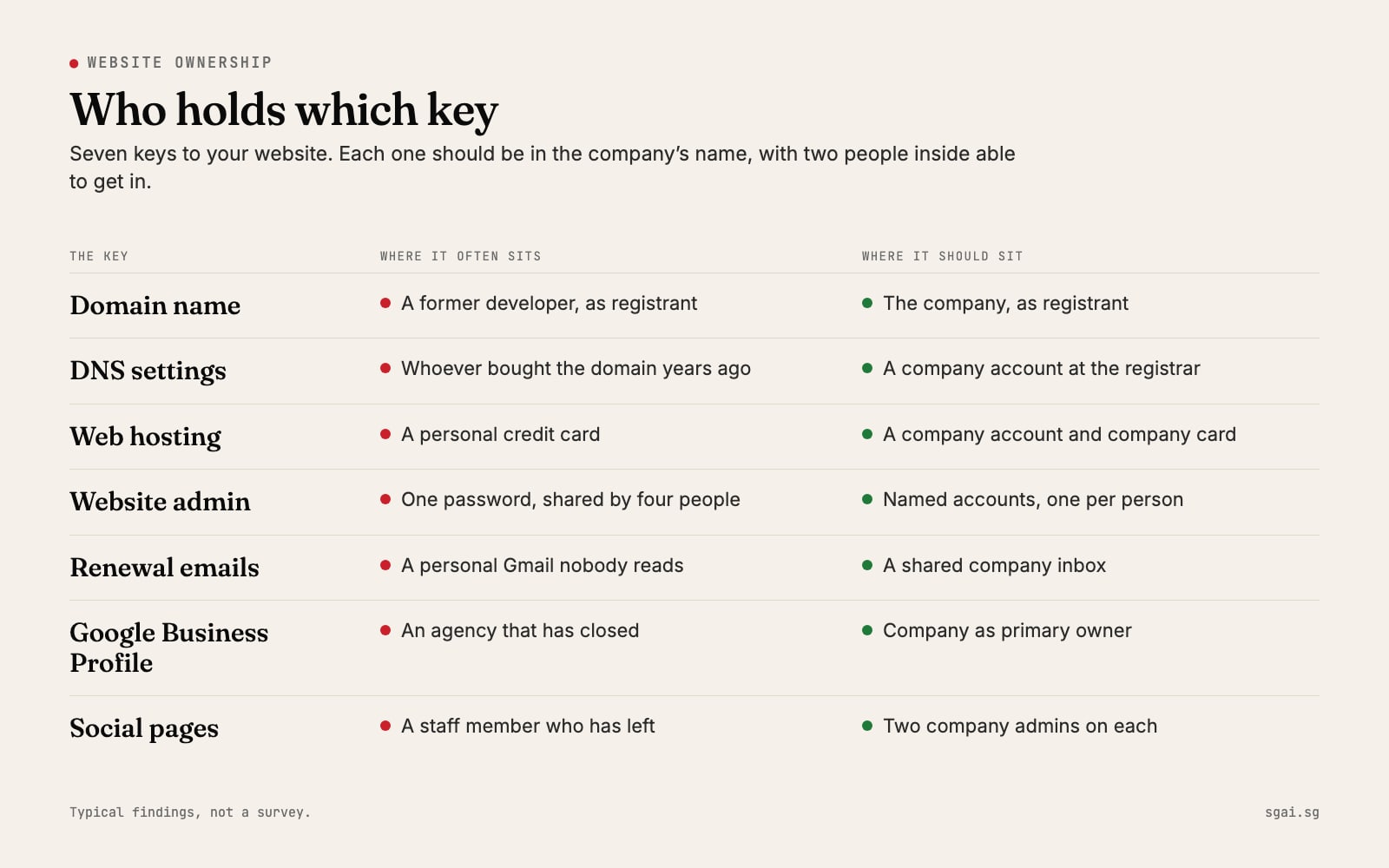
Nobody here has the admin password. The site was built by someone who left, and its keys sit in a personal inbox. This is more common than anyone admits, and it is fixable. You need a list, a quiet afternoon, and a few emails to the right people. This guide walks through each key, how to find who holds it, and how to bring it home.

Why this matters more than the design
Your website is not one thing. It is seven separate accounts, often set up by different people in different years. If any one of them sits with someone who has left, the business depends on that person's goodwill. If the domain lapses because the renewal email goes to an old Gmail, your website and your company email stop on the same day. So before anyone talks about a redesign, find out who holds each key.
The seven keys
1. The domain name
The domain is the address, such as yourcompany.com.sg. Whoever is listed as the registrant is, in practice, the owner.
How to find it. For a .sg domain, use SGNIC's domain search (checked 8 Nov 2026). SGNIC's FAQ (checked 8 Nov 2026) explains that the registrant's email and phone are masked in the public result, but you will see the registrar, the company that sold the domain. For .com and other endings, ICANN Lookup (checked 8 Nov 2026) shows the registrar and the expiry date.
What good looks like. The registrant is the company, not a person. The registrar account is a company login with two people who can get in.
2. The DNS settings
DNS is the address book that tells the internet where your website and your email live. It is usually managed at the registrar, or at a service like Cloudflare. Whoever controls DNS can point your website or your email somewhere else.
How to find it. Ask whoever has the registrar login. If nobody does, the registrar's support team can tell the registrant which account the domain sits in.
3. The hosting account
This is where the website files live. Look for a recurring charge on the company card or in the accounts, often a small annual or monthly fee. If you find nothing, the bill may be on someone's personal card.
4. The website admin
If the site runs on WordPress or a similar system, there is a log-in page and a list of user accounts. Ask: who has an account, and when did each person last log in? One shared "admin" password used by four people counts as nobody owning it.
5. The email that receives the renewals
This is the quiet one. Domain, hosting and security notices all go to one email address. If that address is a former employee's personal inbox, every warning goes nowhere. Change it to a shared company inbox that at least two people read.
6. Your Google Business Profile
This is the listing with your address, hours and reviews on Google Maps. Google's guide to managing owners and managers (checked 8 Nov 2026) explains that a profile can have several owners but only one primary owner, and only owners can add or remove people.
If an agency or ex-staff member owns it, Google has a process to request ownership of a Business Profile (checked 8 Nov 2026). The current owner is emailed and, per that page, has 3 days to respond.
7. Social pages
On Facebook, only someone with full control can add or remove others, as Meta's help page on Page access (checked 8 Nov 2026) explains. Check who has full control, not just who posts. The same goes for Instagram, LinkedIn and YouTube.
How to move each key into the company's name
You can do most of this yourself in an afternoon, once you know who holds what.
- Make a company inbox first, such as admin@yourcompany.com.sg, read by two people. Every account below will use it.
- Domain. Ask the current registrant to change the registrant to the company through the registrar. If you also want to move to a different registrar, SGNIC's FAQ says the registrant first gets a "domain transfer password" from the current registrar, and the new registrar submits the request.
- DNS and hosting. Ask for the accounts to be handed over, or for the company account to be added as an owner. Change the passwords afterwards.
- Website admin. Give each person their own named account. Remove accounts for anyone who has left. Turn on two-step verification where the system offers it.
- Google Business Profile. Add the company account as an owner, then transfer primary ownership to it. Google notes that new owners must wait 7 days before some actions, including transferring primary ownership, so start early.
- Social pages. Add two company people with full control, then remove people who have left.
When the old developer cannot be reached
Sometimes the person who built the site has moved overseas, closed their business or stopped replying. Do not panic, and do not pay anyone who claims they can "recover" a domain for you.
- Write once, politely, with a deadline. Many people are glad to hand things over. They just need a clear list of what you want.
- Go to the registrar. The registrar is where an ownership question is raised. Expect to show that the company is the rightful owner: invoices for the website, emails about it, your business registration.
- For the Google profile, use the request ownership process above.
- For the website itself, your hosting company can often reset access for the account holder. If the hosting account is also in the developer's name, you may need to rebuild the site on accounts you own. That is often less work than it sounds, and you get a current, secure site out of it.
Your checklist
- Look up the domain on SGNIC or ICANN and write down the registrar and expiry date
- Confirm the registrant is the company
- Find the DNS, hosting and website admin accounts, and who can log in
- Change the renewal email to a shared company inbox
- Check who owns the Google Business Profile, and who is primary owner
- Check who has full control of each social page
- Remove everyone who has left
- Put two people inside the company on every account
- Store the logins in a company password manager, not a spreadsheet
- Put the domain expiry date in the company calendar
What comes next
Once the keys are home, you can make decisions. You can update the site, rebuild it, or leave it alone for now, and you will be choosing rather than hoping. If you are taking over from a parent, our guide to the first 90 days online puts this step in order with the rest. The next useful question is what your site says to strangers and to machines, which we cover in how AI assistants decide who to recommend.
When we rebuild a site for a client, every account is created in the client's name from day one. The code, the domain and the logins stay with you, so you are never handed back to someone you cannot reach.