Ten security checks a manager can do
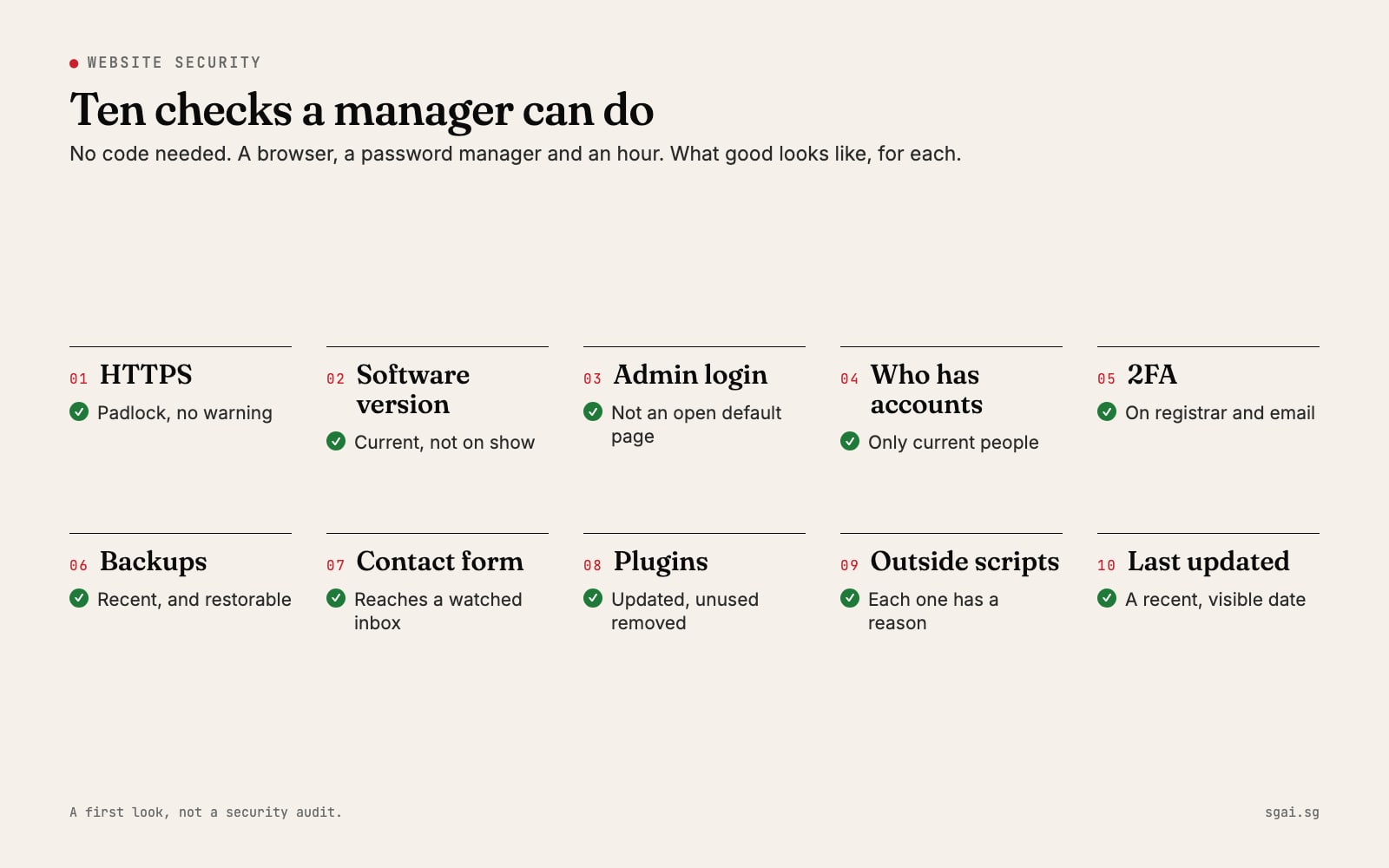
You are not sure the website is safe. Nobody has patched it in years, and nobody is sure who would. You do not need to be technical to find out where you stand. These ten checks need a browser, the logins you have, and about an hour. Each one says how to check and what good looks like. Write down what you find. The list itself is the start of the fix.

Before you start
These checks are a first look, not a security audit. They tell you whether the basics are in place and who to ask about the rest. If you want a fuller picture for the whole business, the Cyber Security Agency of Singapore publishes cybersecurity toolkits (checked 8 Nov 2026) written for business owners, employees and IT teams.
Many company sites run on WordPress, so some examples below use it. The ideas apply to any system.
The ten checks
1. HTTPS
How to check. Open your site in a browser. Look at the address bar. Then type the address with http:// instead of https:// and see what happens.
What good looks like. A padlock or no warning, and the http:// version sends you straight to https://. Google's web.dev explains why HTTPS matters (checked 8 Nov 2026): it stops intruders tampering with the page or listening in. For a deeper look, SSL Labs (checked 8 Nov 2026) is a free service that analyses the configuration of any public site. A grade below A is worth a question to whoever runs the site.
2. The software version on show
How to check. Open the site, right-click, choose "View page source", and search for the word "generator". Many systems print their name and version there.
What good looks like. Either nothing shows, or the version is current. You can compare a WordPress version against the latest release (checked 8 Nov 2026). WordPress's own hardening guide (checked 8 Nov 2026) is blunt: "Older versions of WordPress are not maintained with security updates."
3. The admin login, open to the world
How to check. Add /wp-admin or /admin to your address and see whether a login page appears.
What good looks like. If it appears, there should be more than a password behind it: two-step verification, or an extra layer of protection. The WordPress hardening guide recommends password-protecting /wp-admin/ on the server as "a second layer of protection", and avoiding easily guessed usernames such as admin.
4. Who has accounts
How to check. Log in to the website admin and open the list of users. Do the same for hosting and the domain registrar.
What good looks like. Every account belongs to a named person who works with you today. No shared "admin" login. No former staff or vendors. Our guide to who actually owns your website walks through every account to look at.
5. Two-step verification on the registrar and email
How to check. Log in to your domain registrar and your company email admin. Look under security settings.
What good looks like. Two-step verification is on for every admin. These two accounts matter most: whoever controls them can take over the website, and reset every other password. Google's help page on turning on 2-Step Verification (checked 8 Nov 2026) shows how it works for Google accounts; most registrars have an equivalent.
6. Backups
How to check. Ask whoever runs the site two questions: when was the last backup, and when did someone last restore one to check it works?
What good looks like. Backups run automatically, are stored somewhere other than the website's own server, and someone has restored one in the past year. The WordPress hardening guide puts it simply: "Back up your data regularly, including your MySQL databases." A backup nobody has tested is a hope, not a backup.
7. Where the contact form goes
How to check. Fill in your own contact form with a test message. See who receives it, and how long it takes.
What good looks like. It arrives within minutes at a company inbox that at least two people read. If it goes to a former staff member, a vendor, or nowhere, you are losing enquiries as well as risking customer details sitting in the wrong inbox.
8. Outdated plugins
How to check. In WordPress, open Dashboard > Updates or Plugins > Installed Plugins, as the official guide to updating WordPress (checked 8 Nov 2026) describes. Count the plugins waiting for updates, and the ones switched off.
What good looks like. Few or no updates waiting, and no inactive plugins left installed. The hardening guide says: "if you are not using a specific plugin, delete it from the system." Do not click "update all" on a site nobody has touched in years without a tested backup first. That is a job for whoever runs the site, with check 6 done.
9. Scripts from other companies
How to check. In "View page source", search for <script src=. Each result loads code from somewhere. Write down the website addresses that are not your own: analytics, chat widgets, ad trackers, old social buttons.
What good looks like. Every outside script has a reason someone can explain today. Scripts from tools you stopped paying for, or that nobody recognises, should be removed. Each one is code from another company running on your page.
10. A visible "last updated" date
How to check. Look at the footer, the news page and the key service pages. What is the most recent date anywhere on the site?
What good looks like. A recent date, and a copyright year that is the current year. This is not a security setting, but it is a reliable sign. A site where every date is years old is almost always a site where the software has not been updated either.
What to do with your list
Put the ten results in a simple table: the check, what you found, and who should fix it. Some fixes you can do yourself today, such as turning on two-step verification, removing former staff, and redirecting the contact form. Others, like updating old software and plugins, need someone who can test the site afterwards.
If the honest answer to "who would fix this?" is still nobody, that is the most important finding of all. Our guide to the first 90 days online explains why security comes first when you take over an old site.
Where we come in
Owners usually call us after this list, when most answers are "nobody knows". When the old site is beyond patching, we rebuild it on current, secure technology, with every account in the company's name, so these ten checks stay green without anyone having to remember.